

Anomaly Detection & Multi Yhat
Evaluate the same KPI using multiple anomaly detection logics instead of a single fixed prediction.
What Multi Yhat is
Multi Yhat is DataGenie's multi-model anomaly detection framework. A single KPI is evaluated using multiple Anomaly Detection (AD) Groups in parallel — each producing its own expected value (yhat) and anomaly interpretation — so you can compare forecast-based, business-relative, and reference-based detection side by side.
All AD models are deterministic — the same inputs always produce the same expected values and anomaly flags. Multi Yhat gives you flexibility across baselines without sacrificing reproducibility. See Responsible AI.
Nirvana datasets inherit default AD Groups from their component datasets — so multi-source monitoring stays consistent without re-configuring detection per combined view.
When to use Multi Yhat
- You want to compare forecast-based vs business-relative logic
- You need QoQ, YoY, rolling average, or fixed reference comparisons
- You want more control over anomaly sensitivity
- You need transparency into which detection logic flagged a change
What you get
Multiple prediction paths
The same KPI can be evaluated using different anomaly detection groups.
Transparent anomaly logic
Clearly see which detection group produced the expected value and flagged the anomaly.
Business-aligned flexibility
Choose the prediction style that best fits the KPI and business context.
How Multi Yhat works
Create or configure an Anomaly Detection Group
Each group represents one prediction logic (forecast, previous period, rolling average, fixed reference, etc.).
Models are evaluated inside the group
The system selects the best eligible model for that group.
One yhat is produced per group
The KPI can now have multiple expected values — one for each active group.
Insights reflect the selected group
Explorer, Top Stories, and Deep Dive use the chosen group to interpret anomalies.
Anomaly Detection Groups (AD Groups)
An AD Group is a named configuration that combines one or more detection models and assigns them to your KPIs. You can have multiple AD Groups per dataset — useful for comparing detection sensitivity or testing a new model configuration without affecting your live setup.
How to configure anomaly detection
Select the KPI you want to monitor
Choose the KPI you want to configure anomaly detection for.
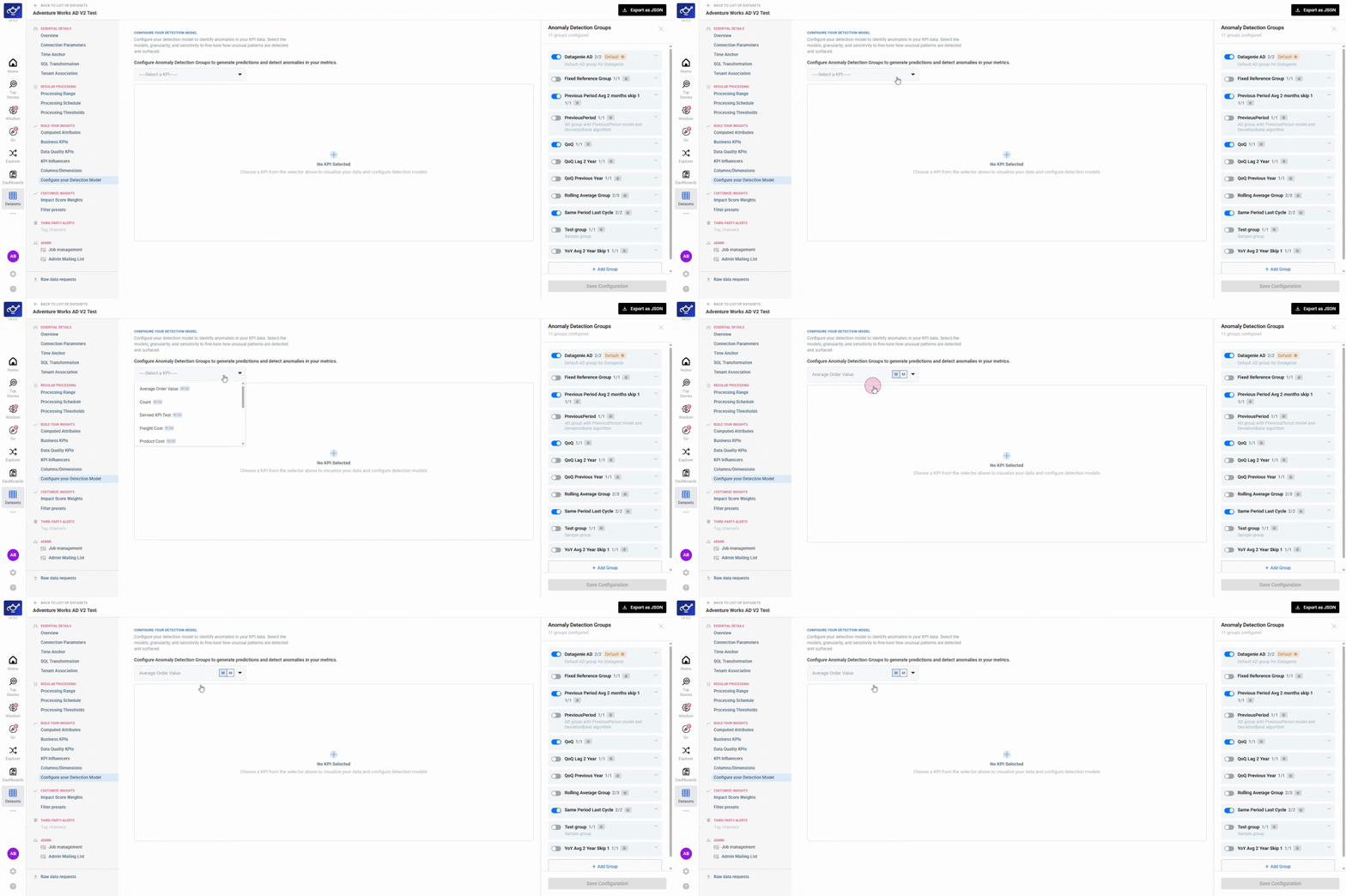
Choose the granularity
Select the time granularity — daily, weekly, or otherwise — that matches your monitoring cadence.
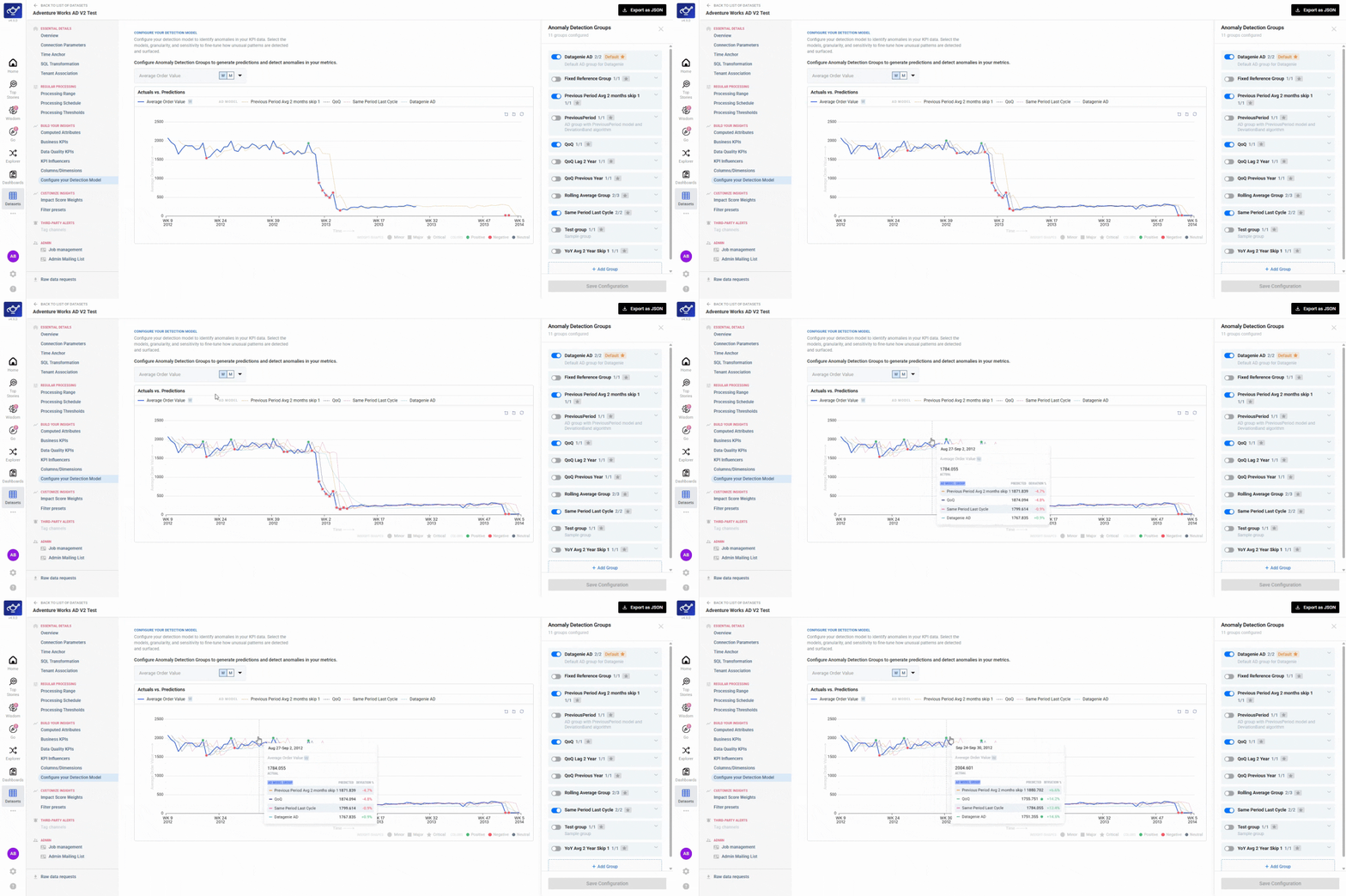
Review the KPI trend with prediction lines
See the KPI trend overlaid with prediction lines from each enabled detection group.
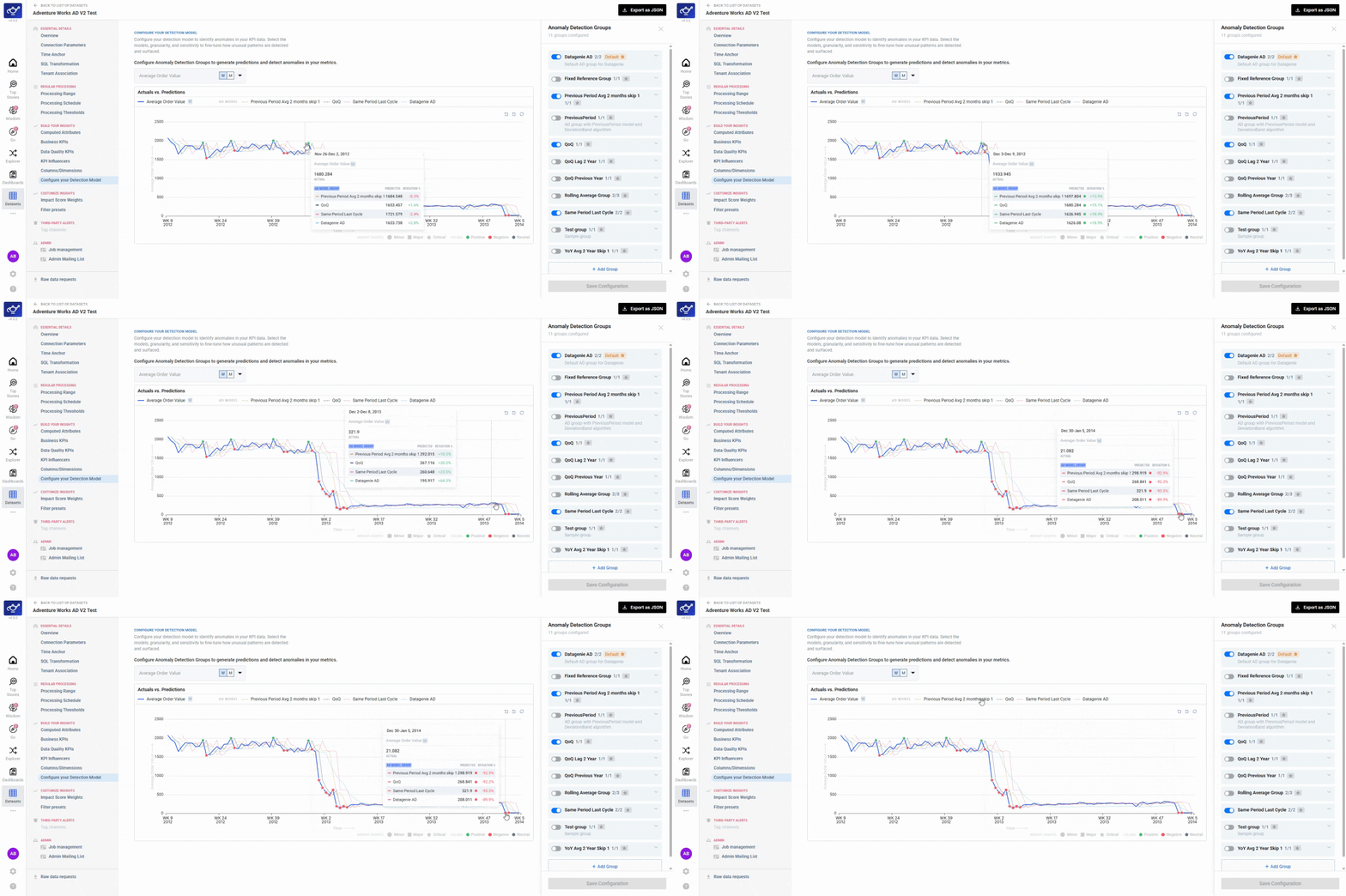
Compare detection approaches
Each active group appears as a separate prediction line — showing how different detection logics interpret the same metric side by side.
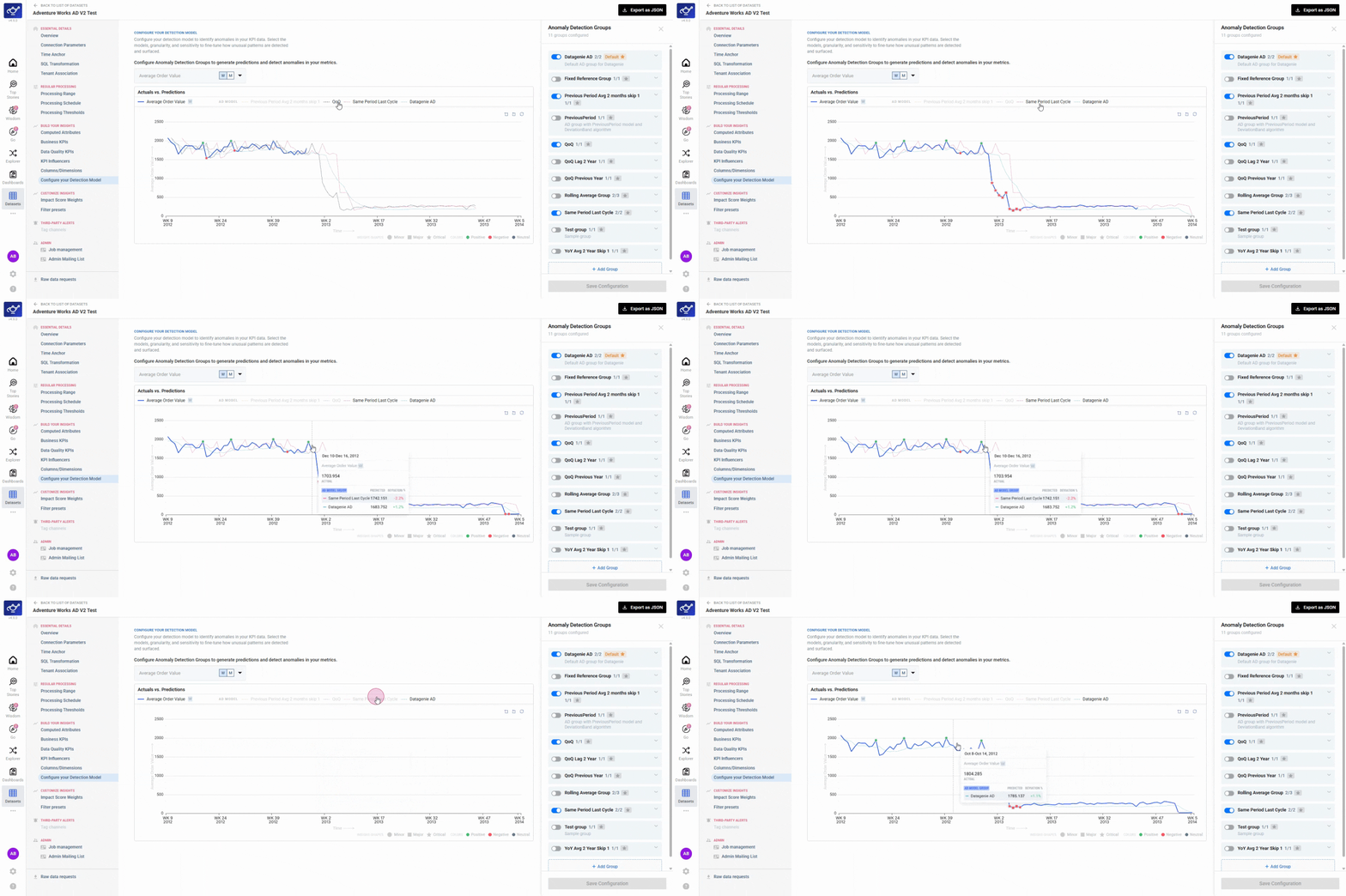
Open the Anomaly Detection Groups panel
Open the Anomaly Detection Groups panel to see all available groups — DataGenie AD, previous period, rolling average, quarter-over-quarter, or any custom groups you've created.
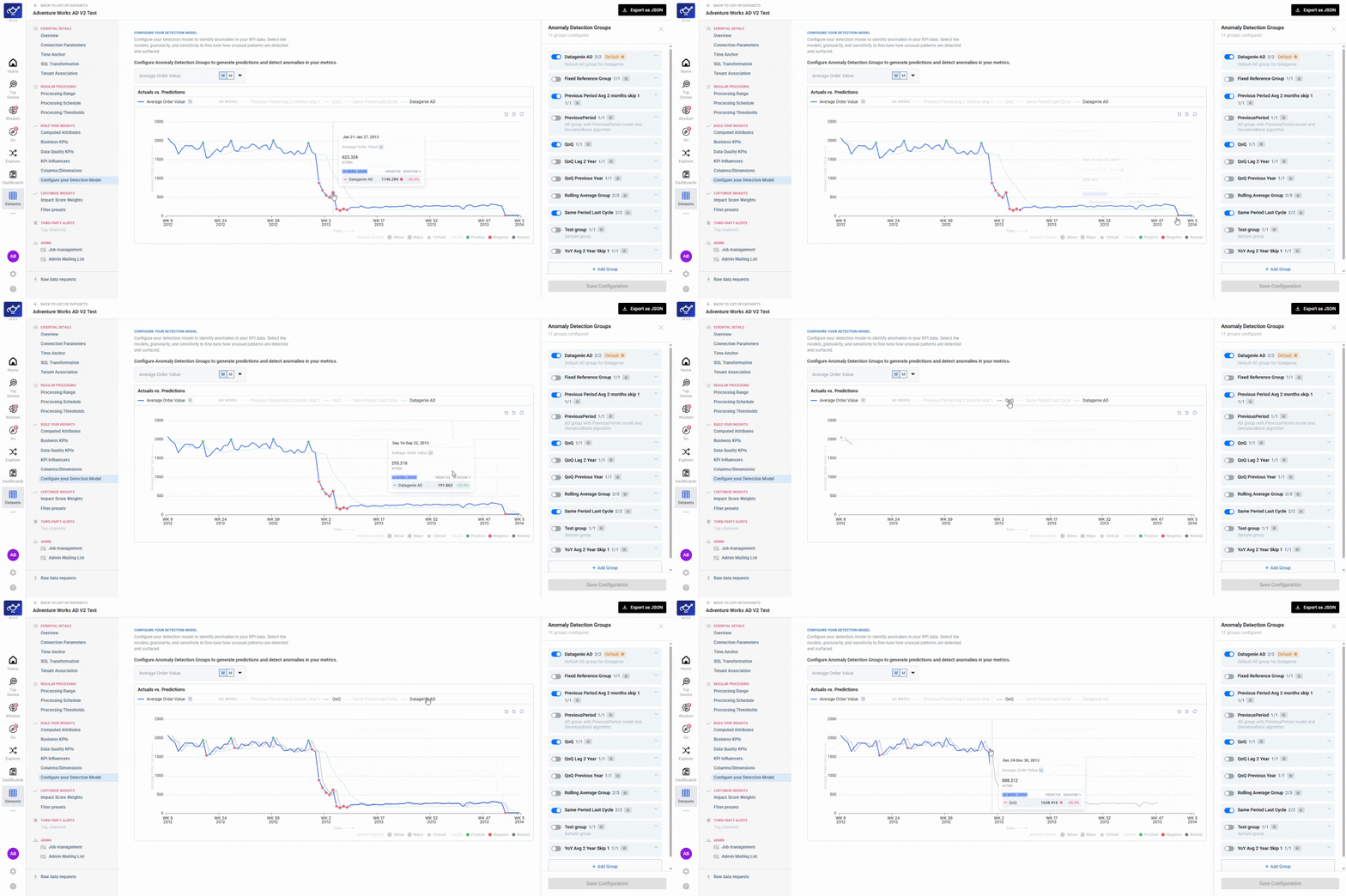
Enable or disable detection groups
Toggle groups on or off to control which detection logics appear in the comparison view.
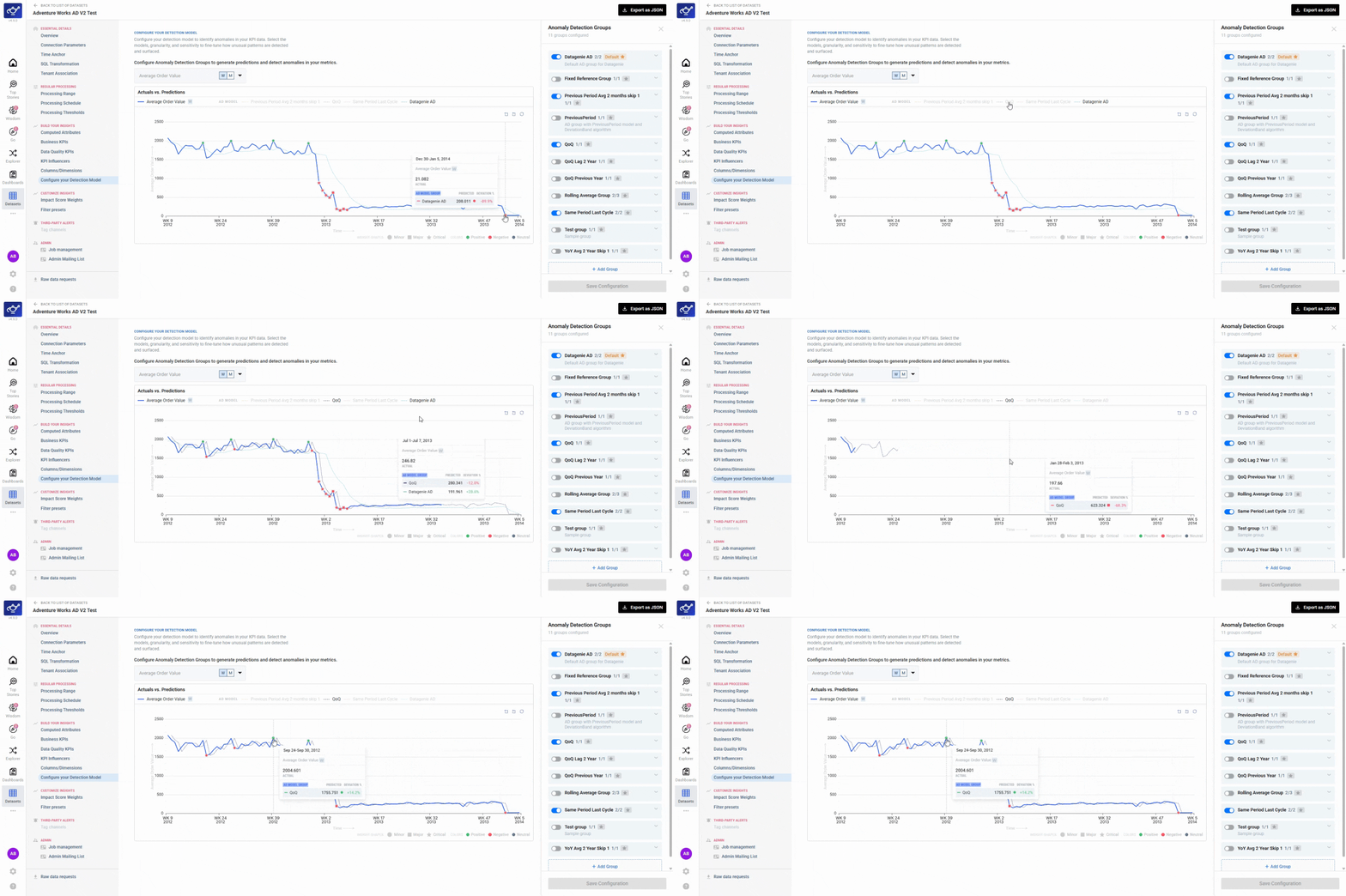
Save your configuration
Once groups are configured, this setup determines how predictions and anomaly insights appear across Top Stories, Explorer, and all downstream experiences.
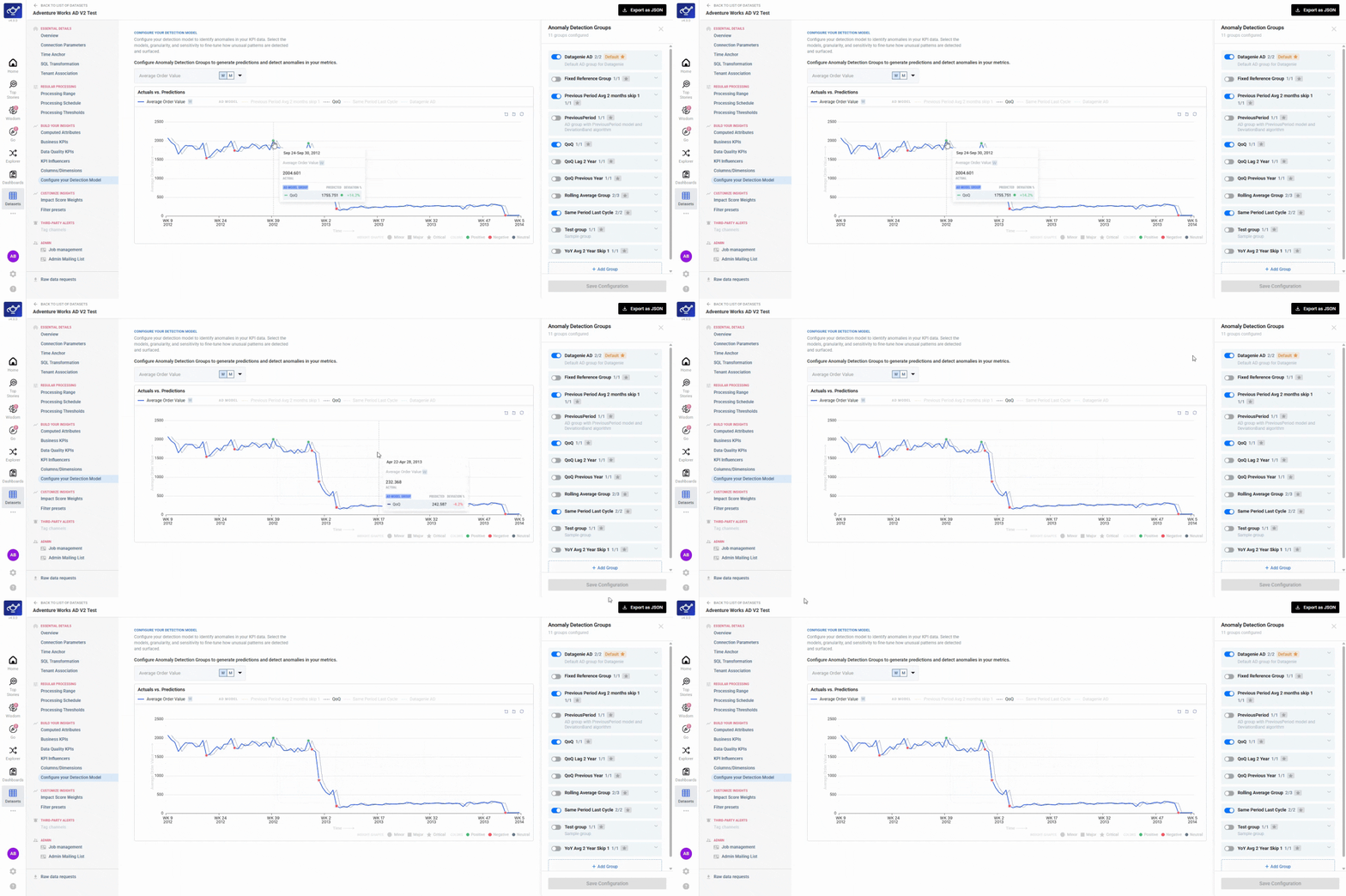
Where Multi Yhat appears
Dataset Configuration
Enable, disable, or edit anomaly detection groups and model parameters.
Explorer
Analyze KPI trends using a selected anomaly detection group.
Top Stories
Interpret anomalies and prediction behavior based on the active group.
Typical workflows
- Select the detection group that matches your business comparison logic.
- Review how anomalies change under different groups.
- Use Top Stories to align insights with your preferred detection style.
- Configure multiple groups for one KPI.
- Compare prediction lines visually in configuration charts.
- Validate anomaly sensitivity using different band logic.
- Use Explorer to confirm interpretation consistency.
Tips for better results
Not all KPIs behave well under one detection style. Use forecast models for trend-heavy KPIs and reference-based models for benchmark-style KPIs.
Create a second AD Group with adjusted sensitivity for your most volatile KPIs — e.g. a promotional SKU that regularly spikes. This way you can toggle between the default group (for baseline monitoring) and the custom group (for campaign analysis) without reconfiguring anything.