

Dashboards
Conversational dashboards — pin any Wisdom answer or Story chart; set one as Quick Look.
Dashboards are DataGenie's canvas for turning autonomous insights into shareable reports — pin any Wisdom answer, Top Story chart, or Explorer view, then promote any dashboard to a QuickLook for instant home-screen access.
How to build a Dashboard
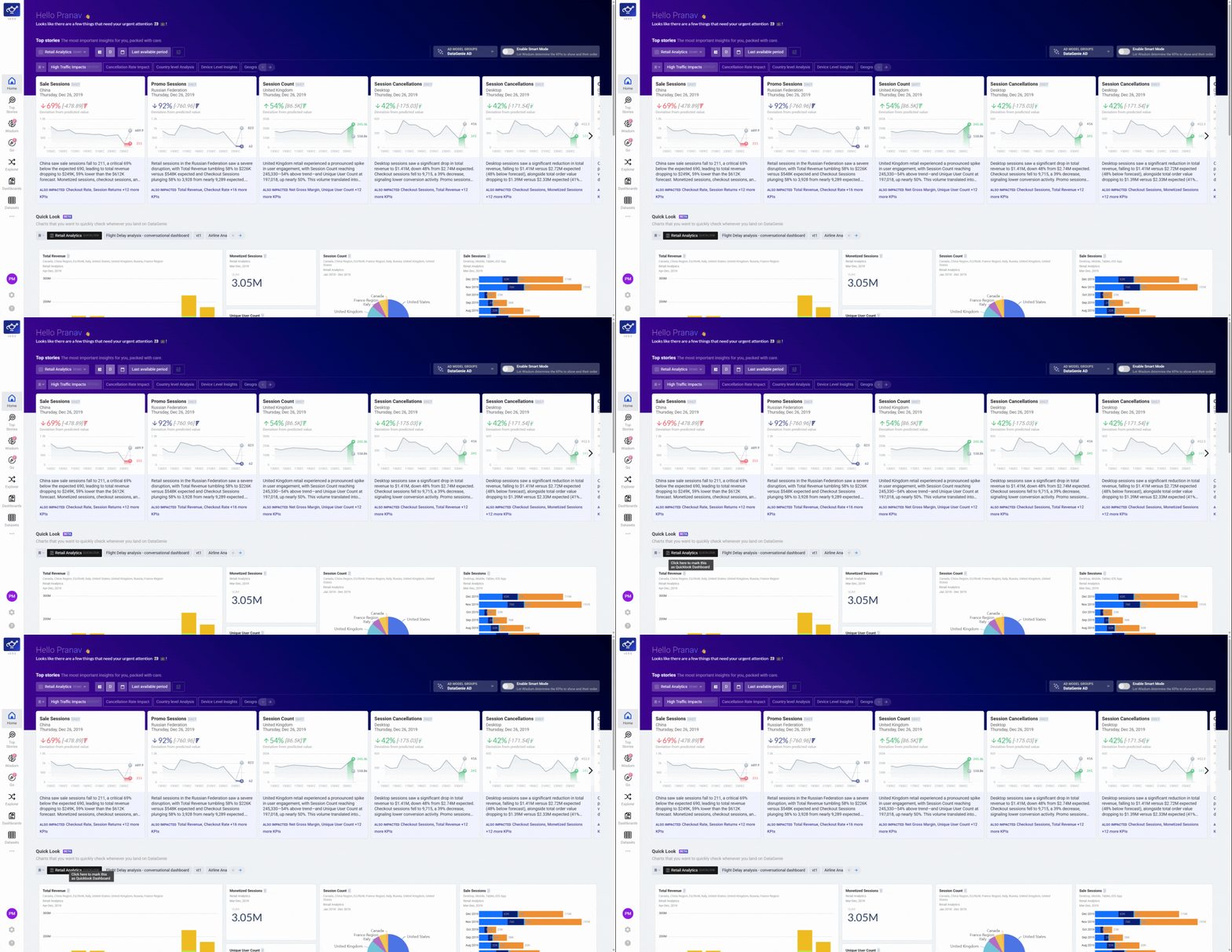
Open the Dashboard module
Launch Dashboards from the left sidebar to see your existing reports. This is the starting point for creating and managing all of your DataGenie dashboards.
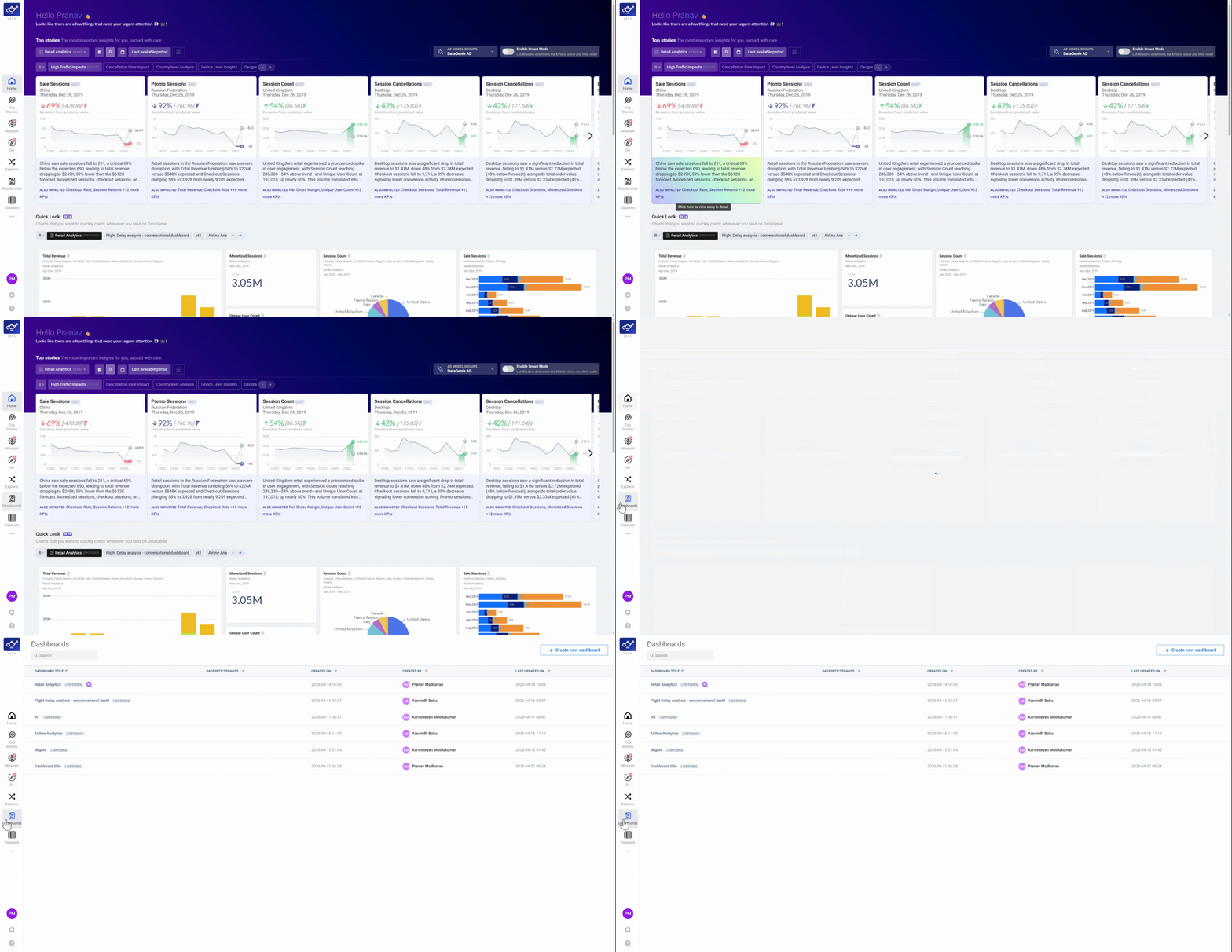
Create a new dashboard
Click Create New Dashboard to open a fresh canvas. Choose a prebuilt template for a quick start, or select a blank dashboard to design from scratch.
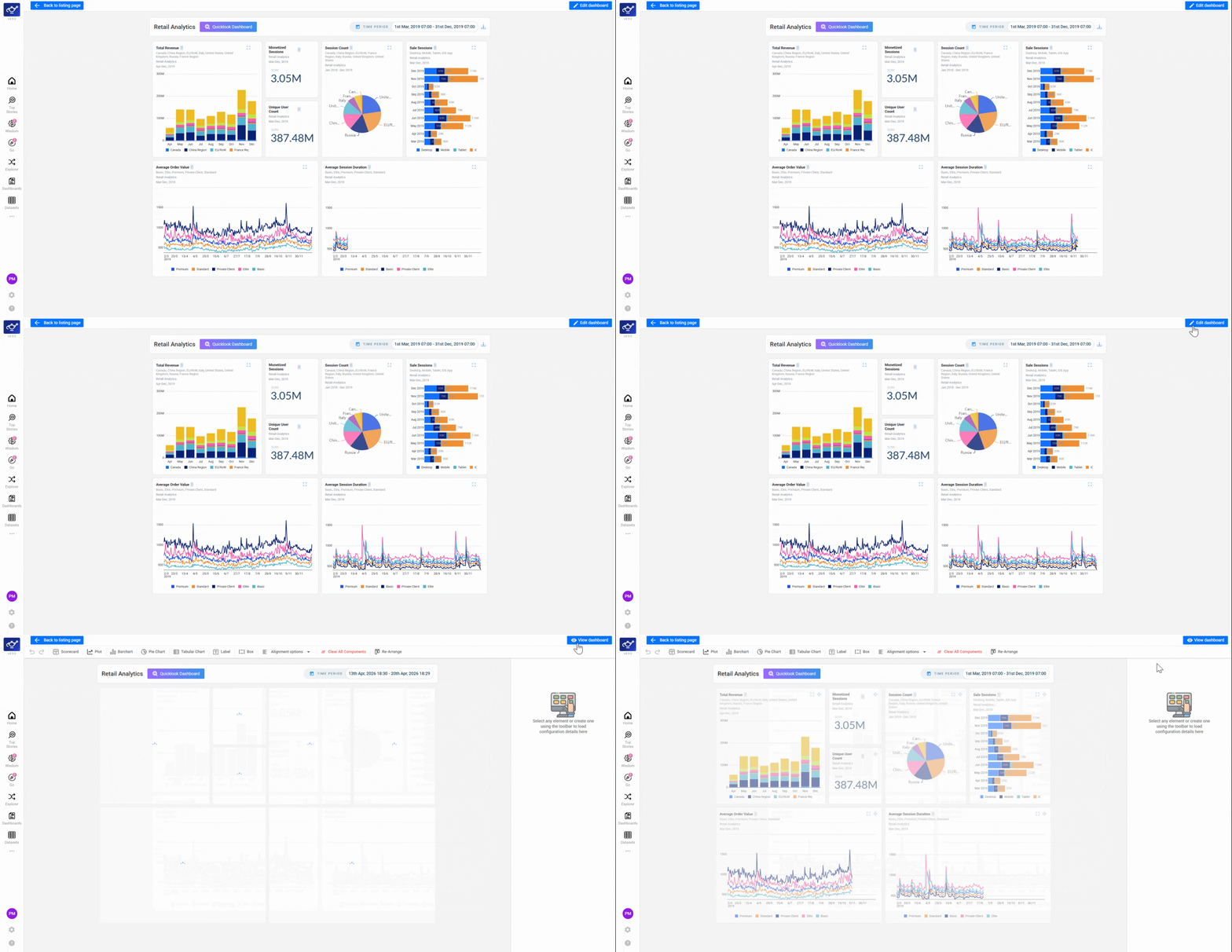
Add widgets from the left pane
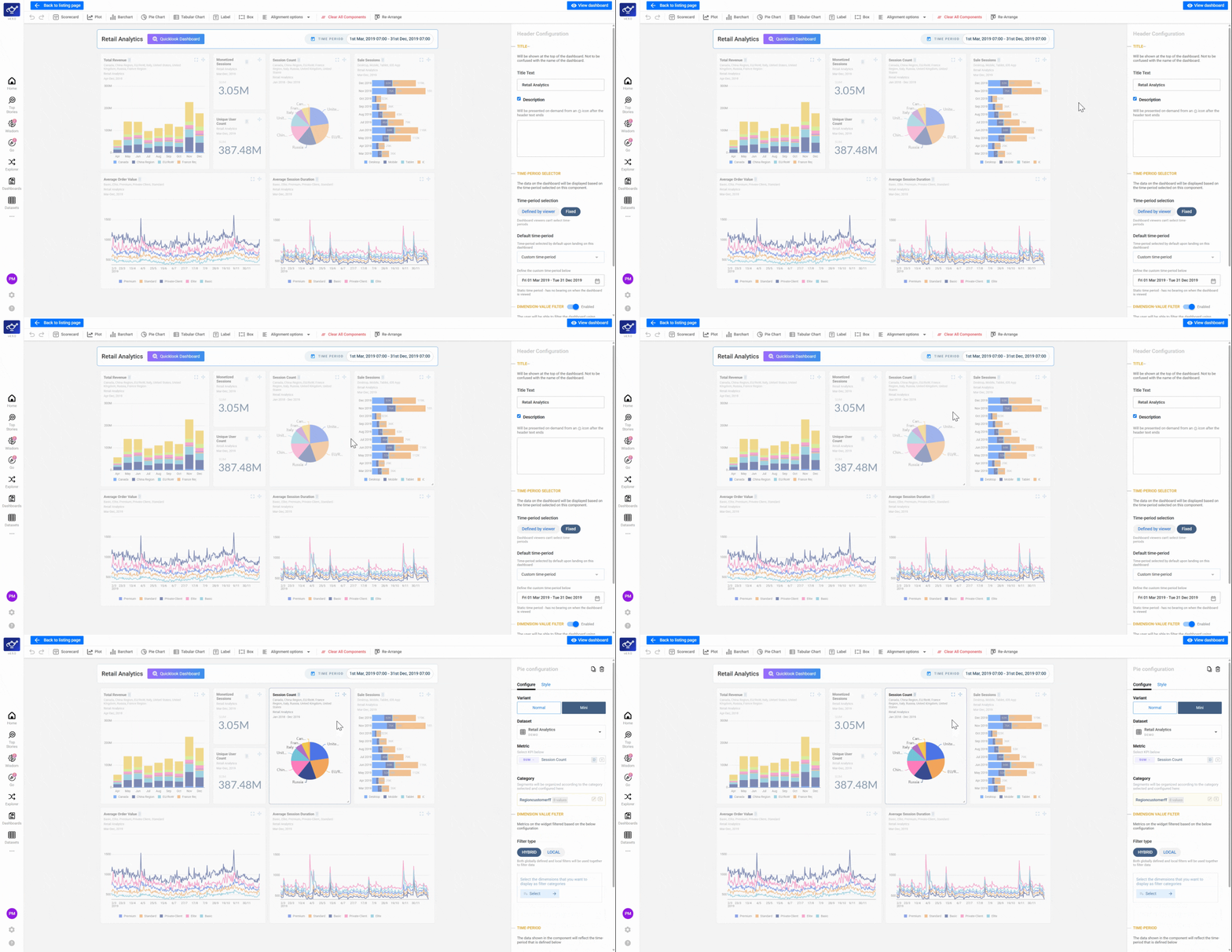
Select widgets from the left pane and place them on the canvas — Scorecards for KPI snapshots, Bar charts and Pie charts for comparisons, Line plots for trend lines with forecast extensions, and Labels and Boxes for narrative callouts. Each widget type serves a different storytelling purpose.
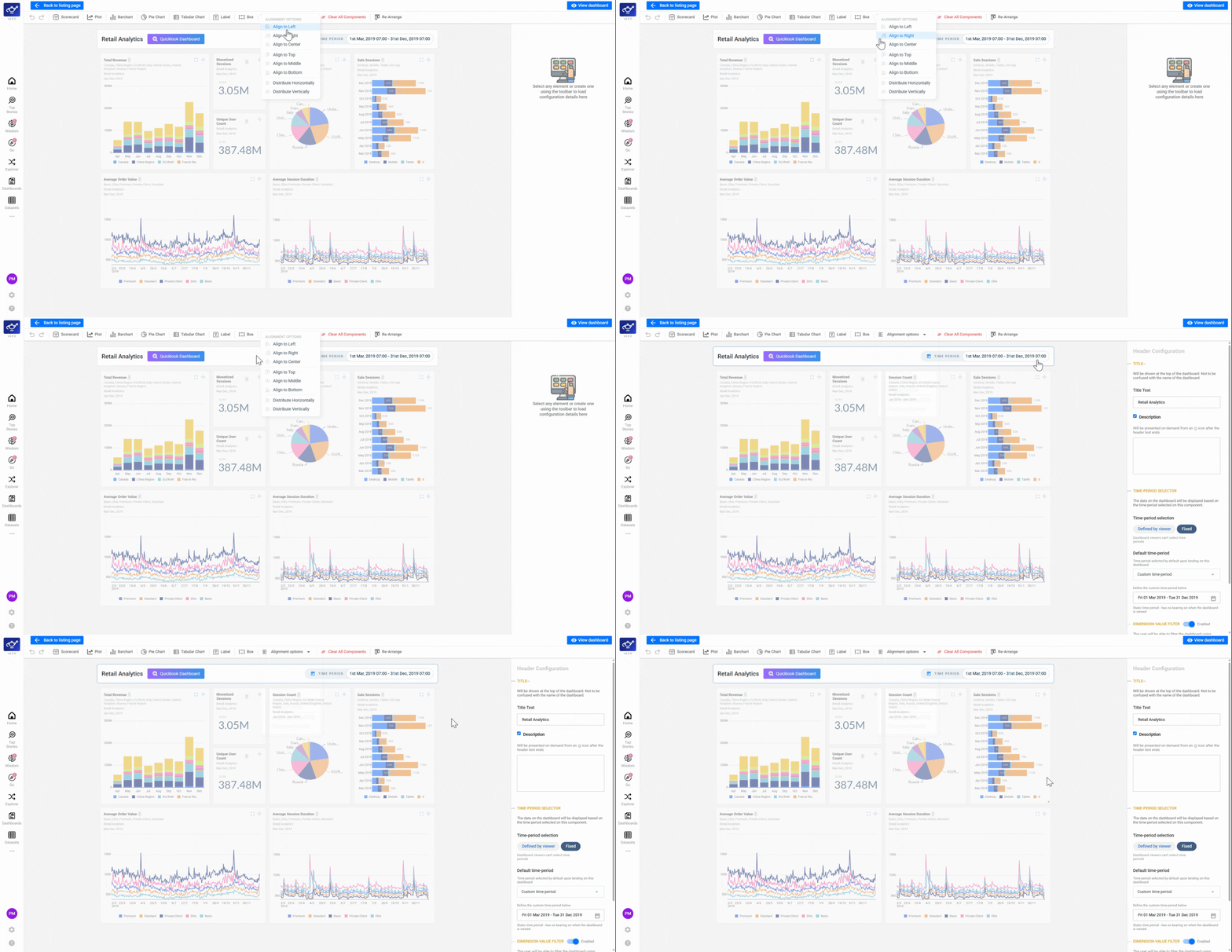
Arrange and align your layout
Use the Alignment and Re-Arrange tools to snap widgets into a clean grid. A well-structured layout makes the report easier to scan at a glance — especially for executive presentations.
Configure each widget's dataset and filters
Click any widget to open its configuration panel. Select the Dataset and Variant, then choose Global filters (updates every widget at once) or Local filters (focuses a single tile on its own time period or segment).
Present or share your dashboard
When your dashboard is ready, open the menu and click Present to launch fullscreen presentation mode. Use this for boardroom sessions, team reviews, or any time you need a clean, distraction-free view of your report.
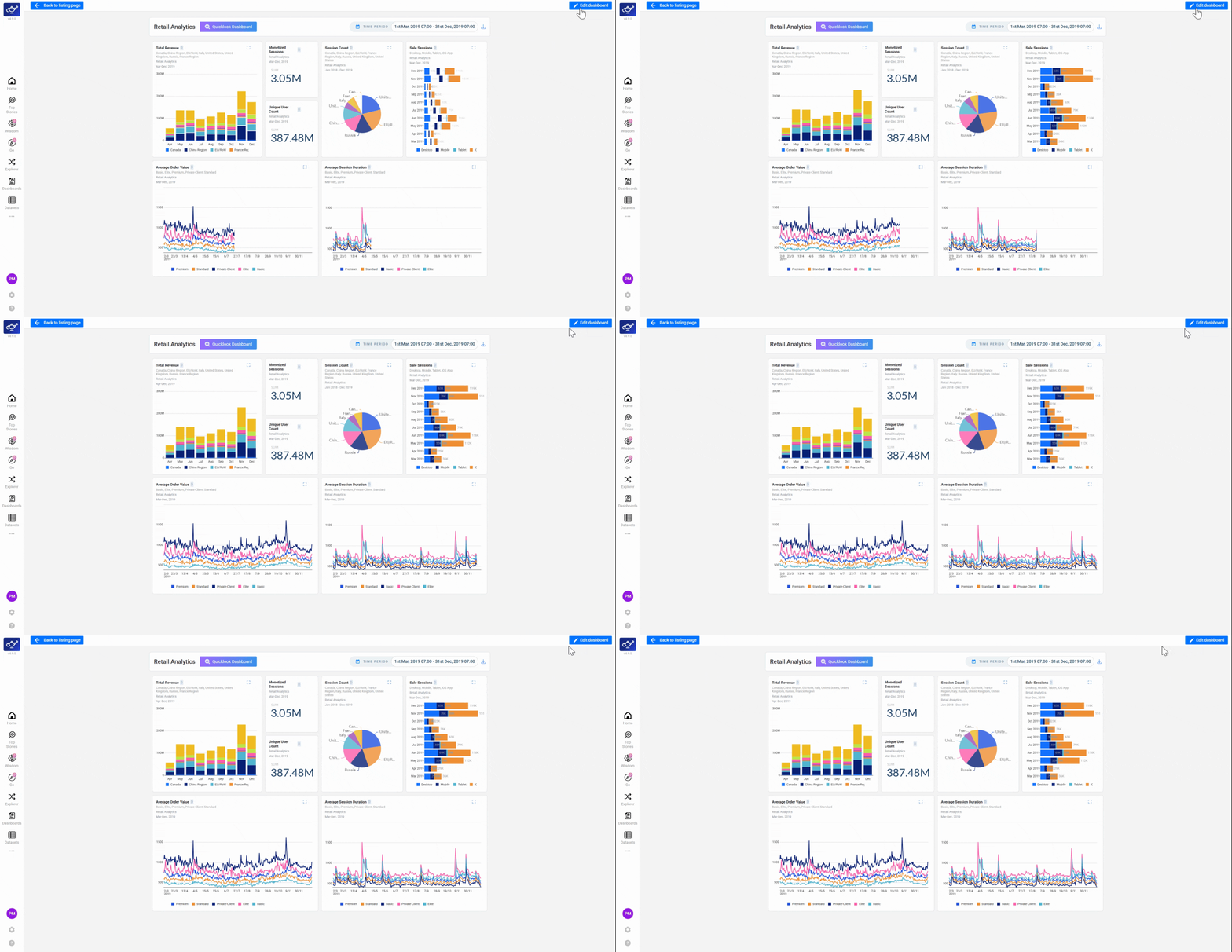
Use Global filters for the report's overall reporting period, and Local filters on specific widgets when you want to compare a single metric across a different timeframe — for example, a YoY line plot on a dashboard otherwise filtered to this quarter.