

Import and Export
Package your entire dataset configuration into a portable Blueprint and reuse it across any workspace or dataset.
Blueprint Import and Export lets you package an entire dataset configuration — KPIs, dimensions, time settings, anomaly detection — into a portable JSON file and reuse it across any workspace or dataset.
What the Blueprint contains
KPI Definitions
Every metric you have configured, including SQL expressions and aggregation logic.
Dimension Assignments
The slicing attributes mapped to each KPI for contributor analysis and story generation.
Processing Preferences
Schedule, granularity, thresholds, and anomaly detection group assignments.
How to export a Blueprint
Open Datasets and sort by Last updated
Navigate to Datasets from the left sidebar, then click the Last updated column header to sort your list by most recently modified. This brings your latest configured dataset to the top without having to scroll.
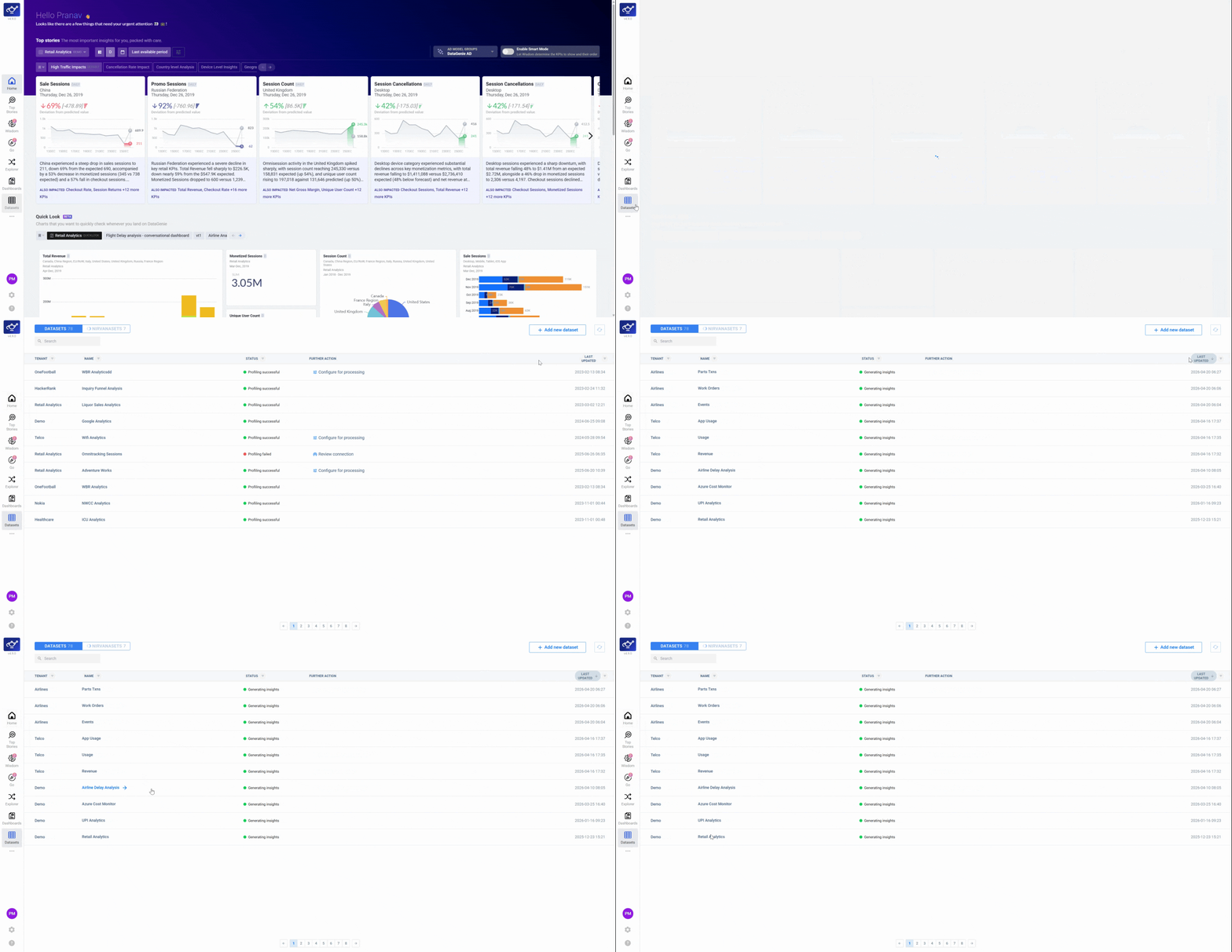
Open the dataset you want to export
Select your target dataset from the sidebar — for example, Retail Analytics. The dataset's detail panel opens, showing the full configuration including KPIs, dimensions, and processing settings.
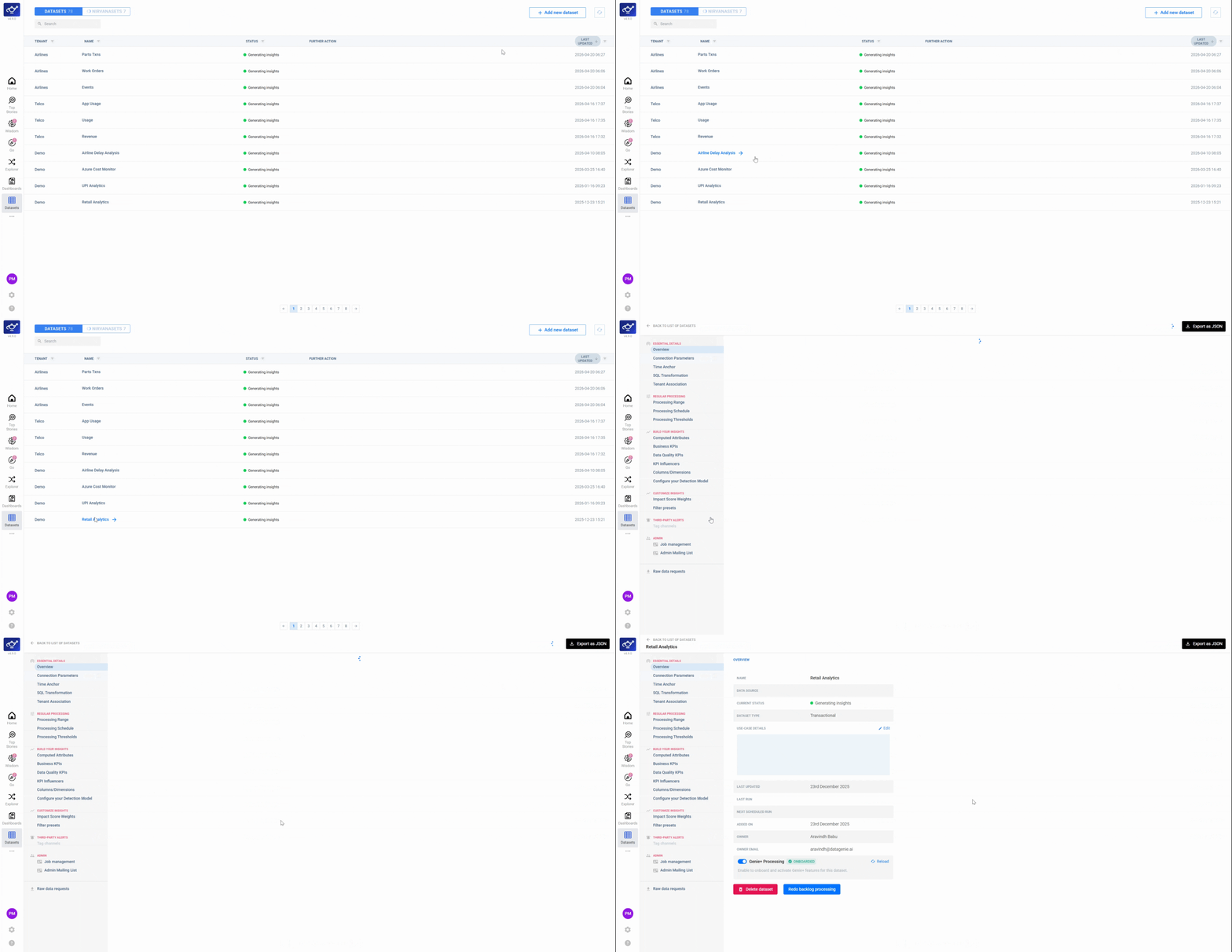
Click Export as JSON to download the Blueprint
In the detail panel, click Export as JSON. Your complete dataset configuration — KPIs, dimensions, time settings, and anomaly detection setup — downloads as a single portable Blueprint file, ready to import into any other workspace.
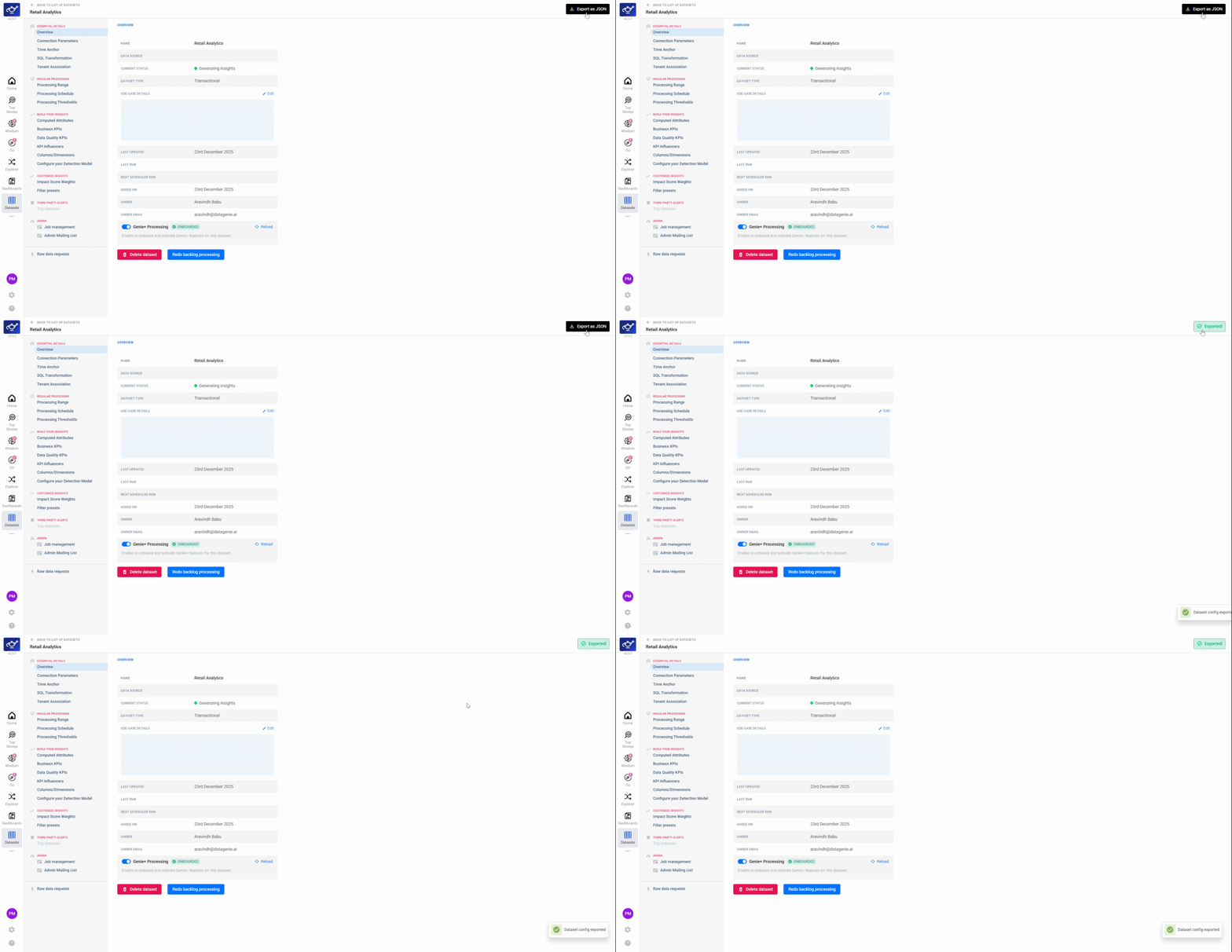
How to import a Blueprint
Navigate to the target dataset
Go to the Datasets screen and open the dataset you want to configure with an existing Blueprint — either for re-onboarding or to replicate a setup from another workspace.
Click Import Blueprint (JSON) and upload your file
At the bottom of the sidebar, click Import Blueprint (JSON) and upload your saved Blueprint file. DataGenie reads the file and maps every configuration entry — KPIs, dimensions, thresholds — to the target dataset.
Review and confirm the imported configuration
DataGenie populates and validates the entire setup, highlighting any fields that need review. Check each section in the Blueprint sidebar, then confirm to activate the imported configuration.
Your data logic is now as mobile as you are. Once a Blueprint is exported, it can be imported into any dataset in any workspace, instantly replicating your full configuration with zero manual rework.
After importing, always review the Blueprint sidebar to confirm the populated configuration matches your expectations before activating the dataset.