

Business Events
Annotate KPI timeseries with real-world events — campaigns, product launches, outages — so Wisdom interprets movements in context.
Business Events are the documented timeline of real-world context Wisdom uses to explain KPI movements — campaigns, product launches, outages, pricing changes. They anchor Wisdom's explanations to recorded causes, not invented correlations.
Business Events work with Domain Knowledge and Wisdom Skills as one of the three configuration surfaces that keep Wisdom safe and accurate. See Responsible AI.
How to manage Business Events
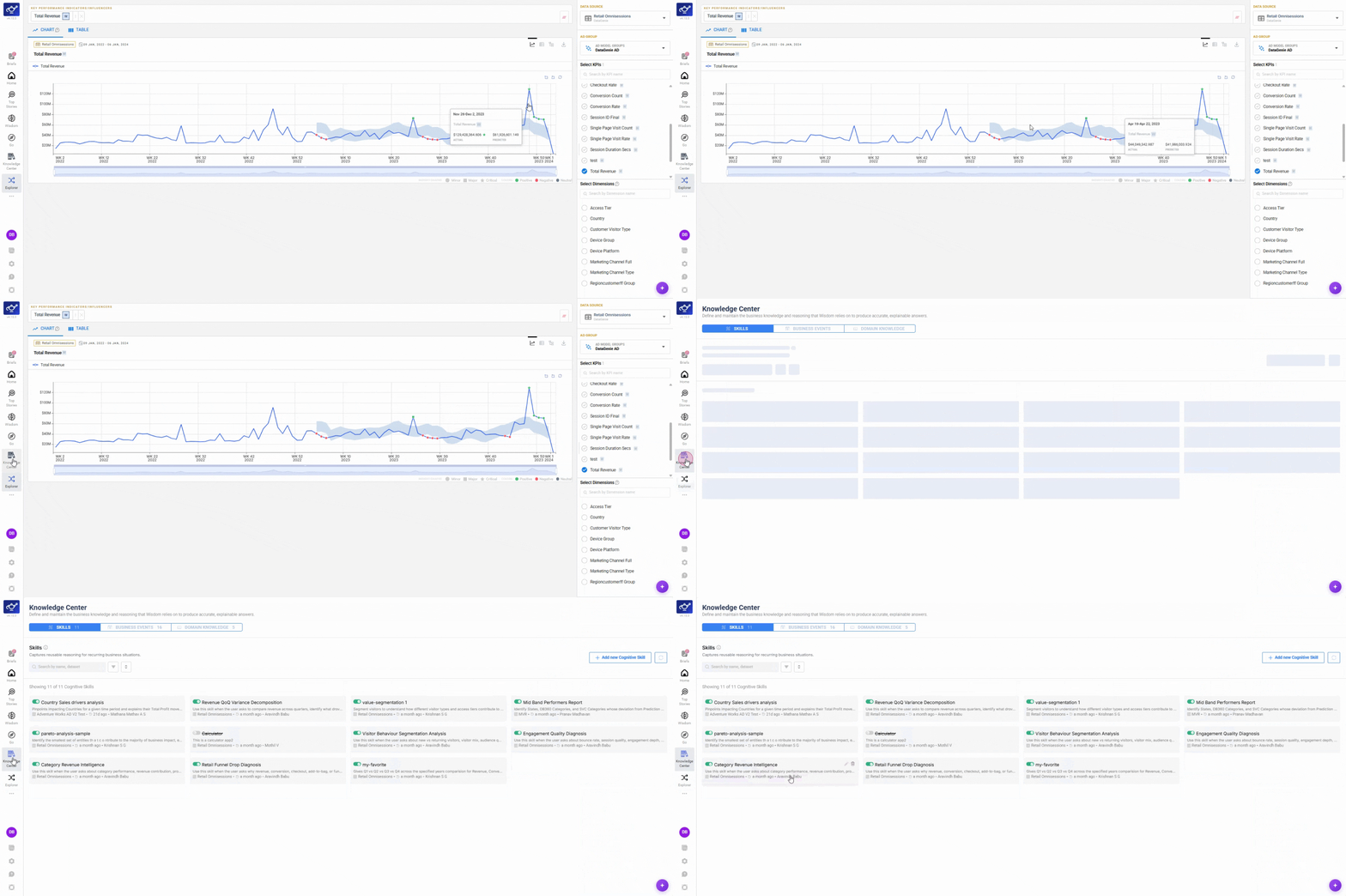
Open Business Events from the Knowledge Center
Click Knowledge Center in the navigation bar, then select Business Events from the content grid.
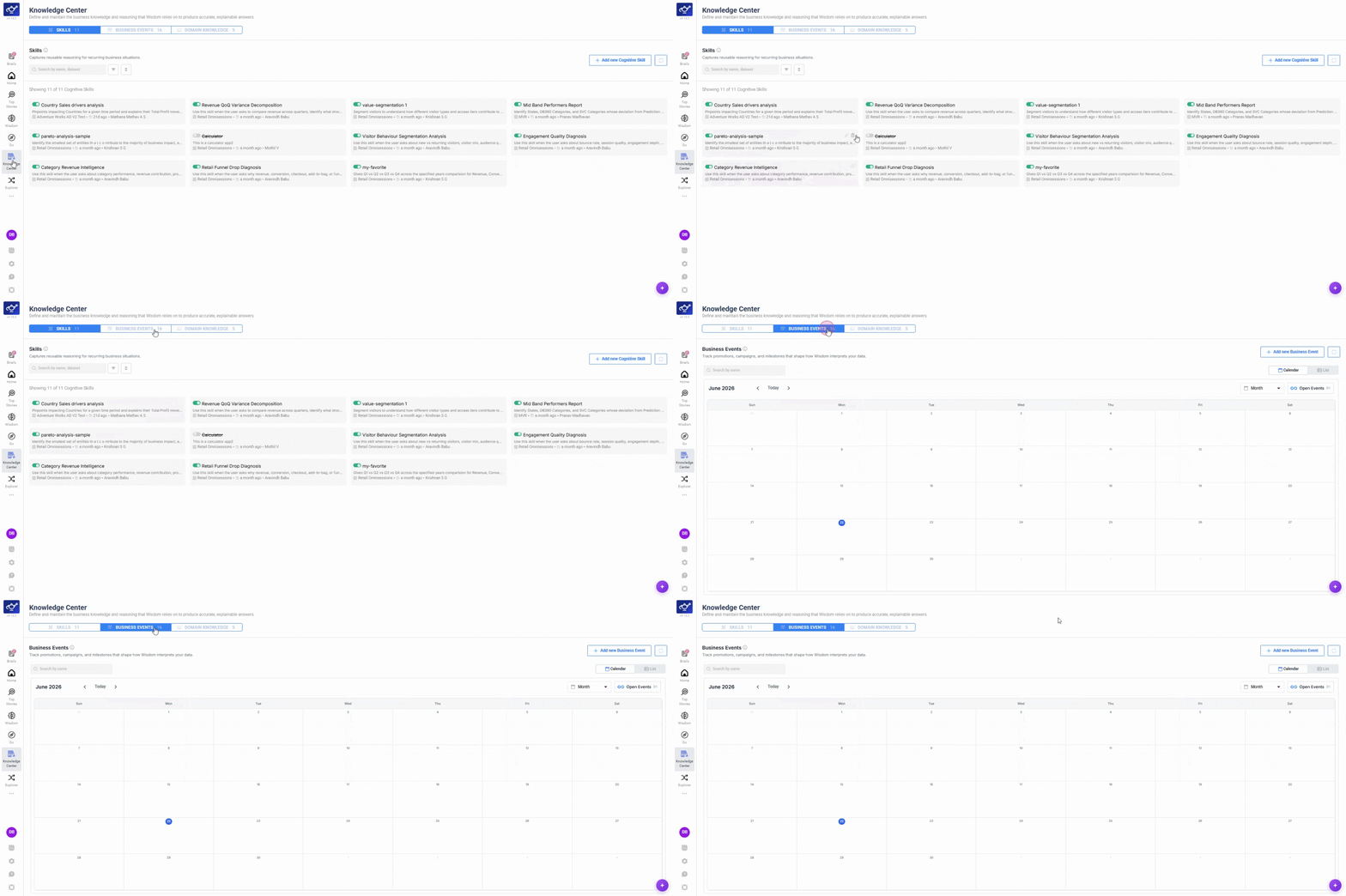
Switch to Chart View
Toggle to Chart View for a visual perspective on events plotted over time.
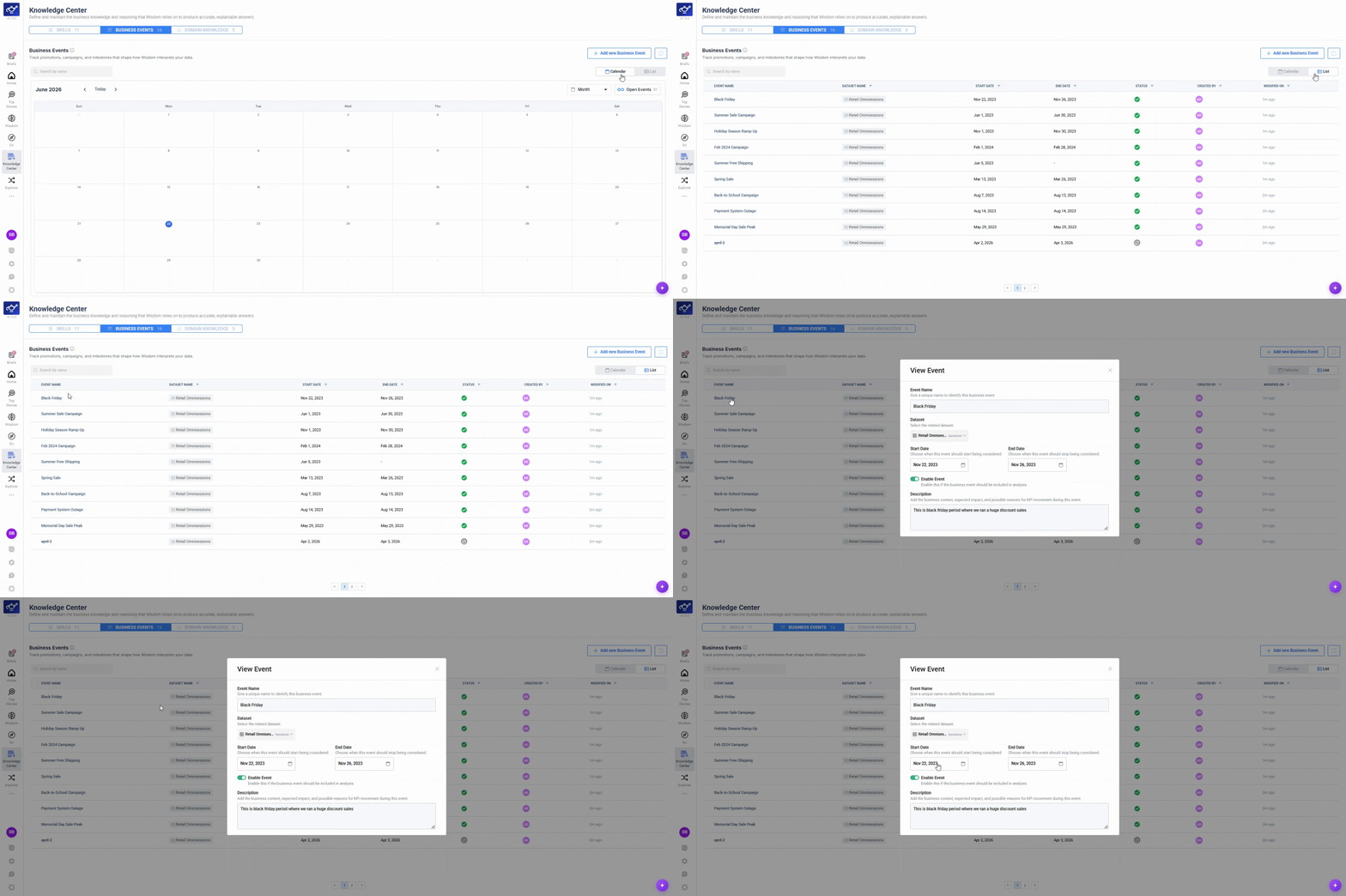
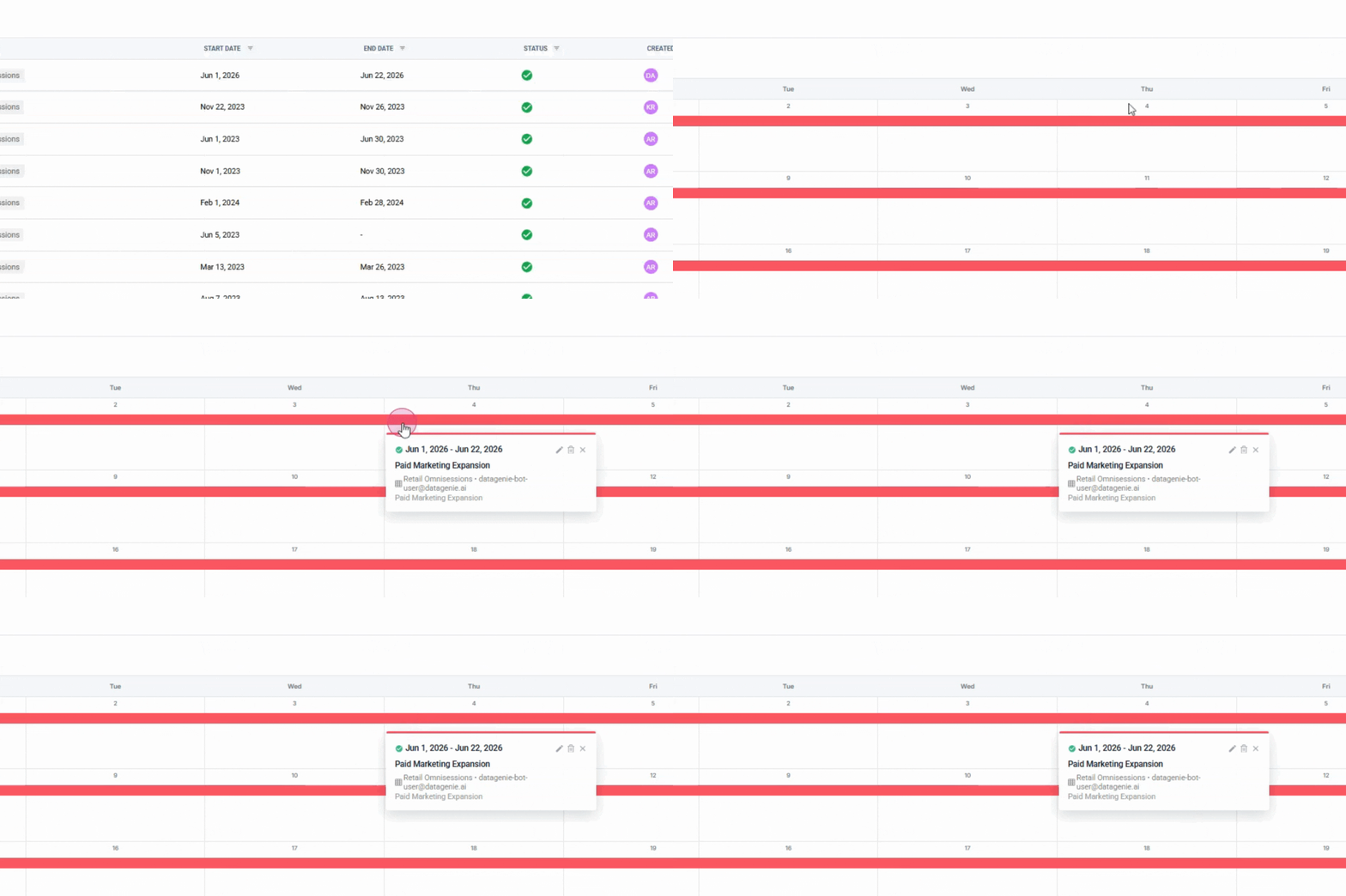
View an existing event
Click any event in the list to see its full details.
Click Create to add a new event
Click the Create button in the upper right to open the event creation form.
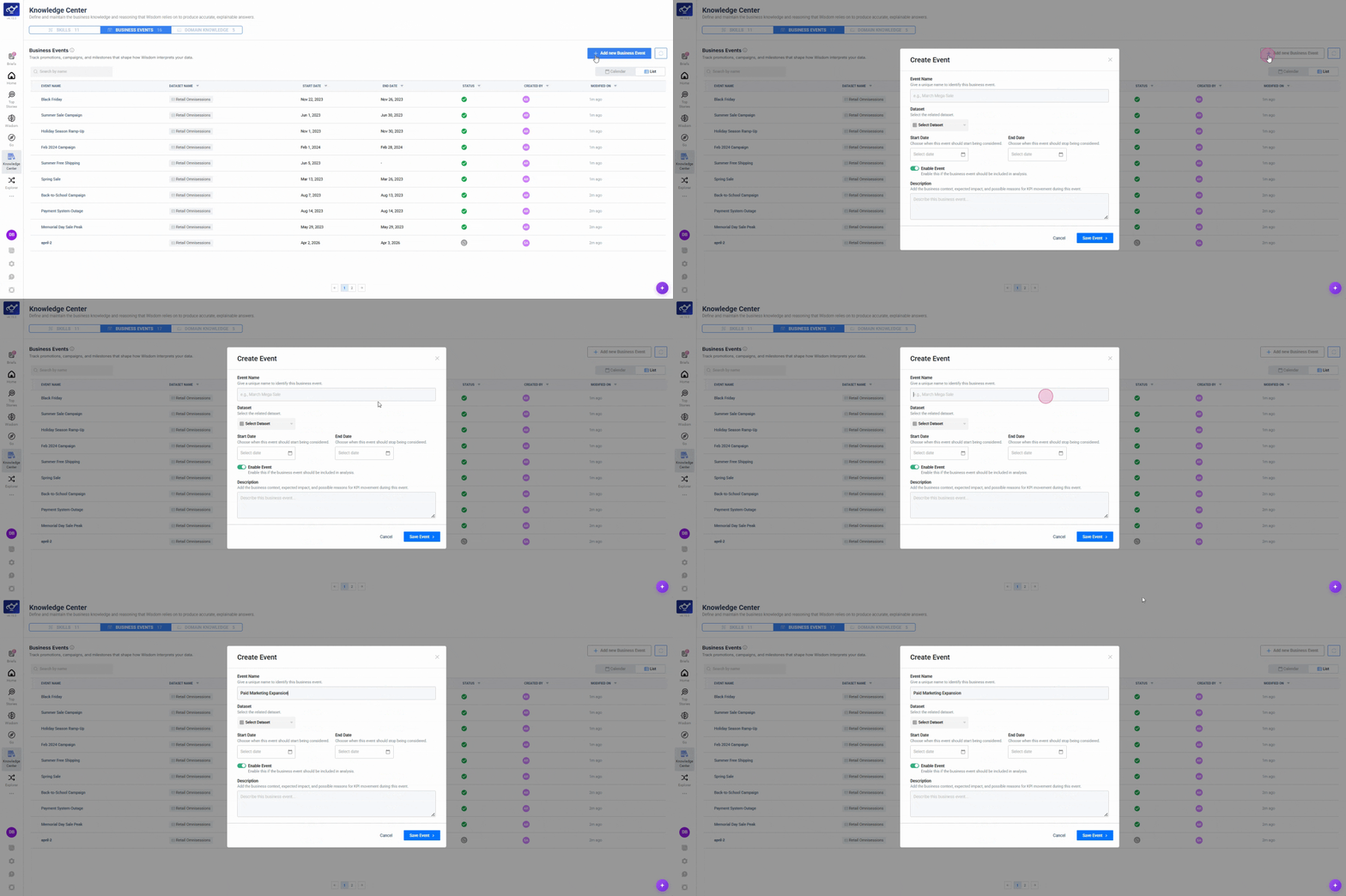
Fill in event details, set dates, and save
Enter the event name, description, and date range, then click Save Event to log it. Wisdom will reference it automatically when analysing KPI movements in that period.
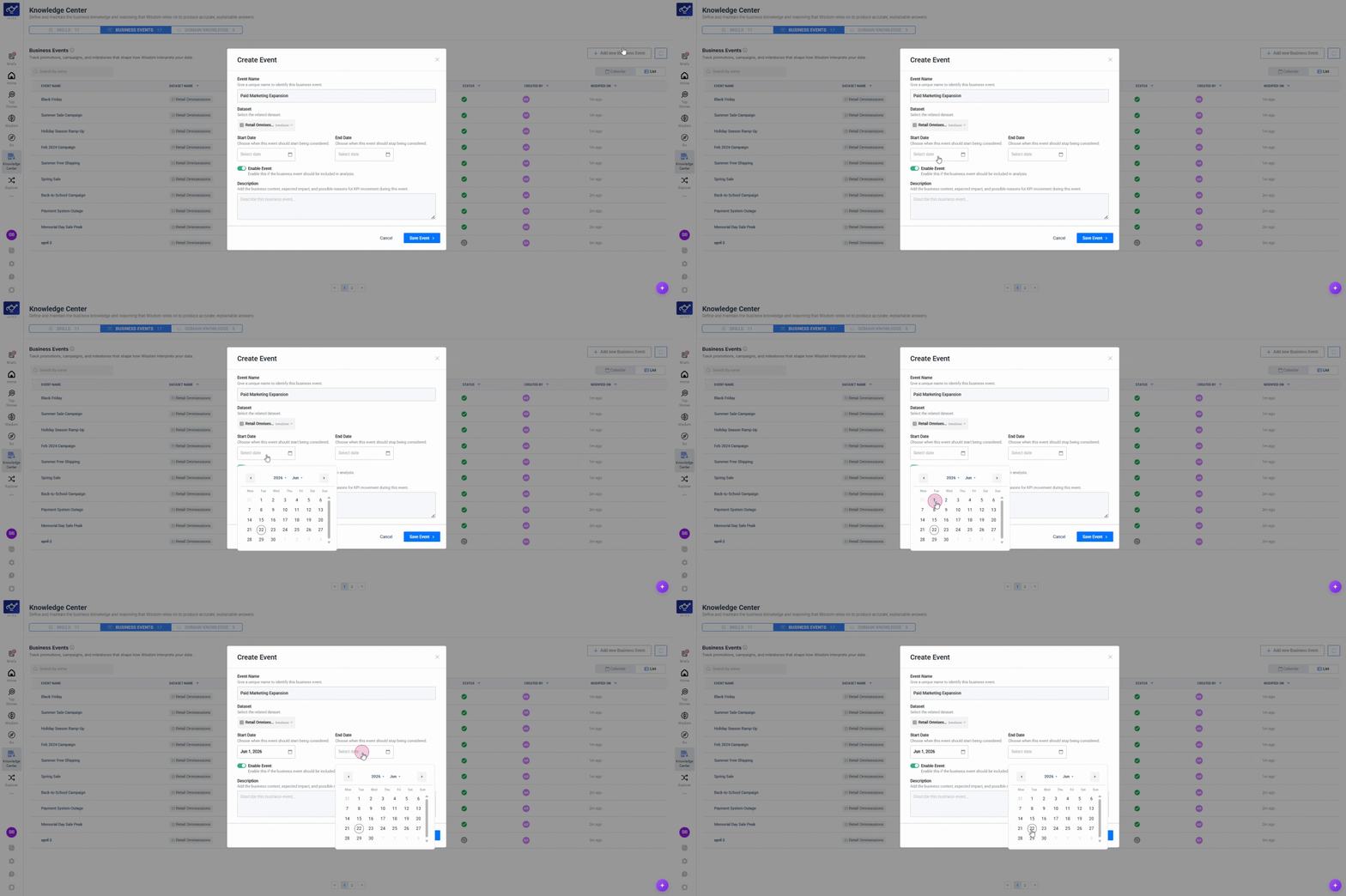
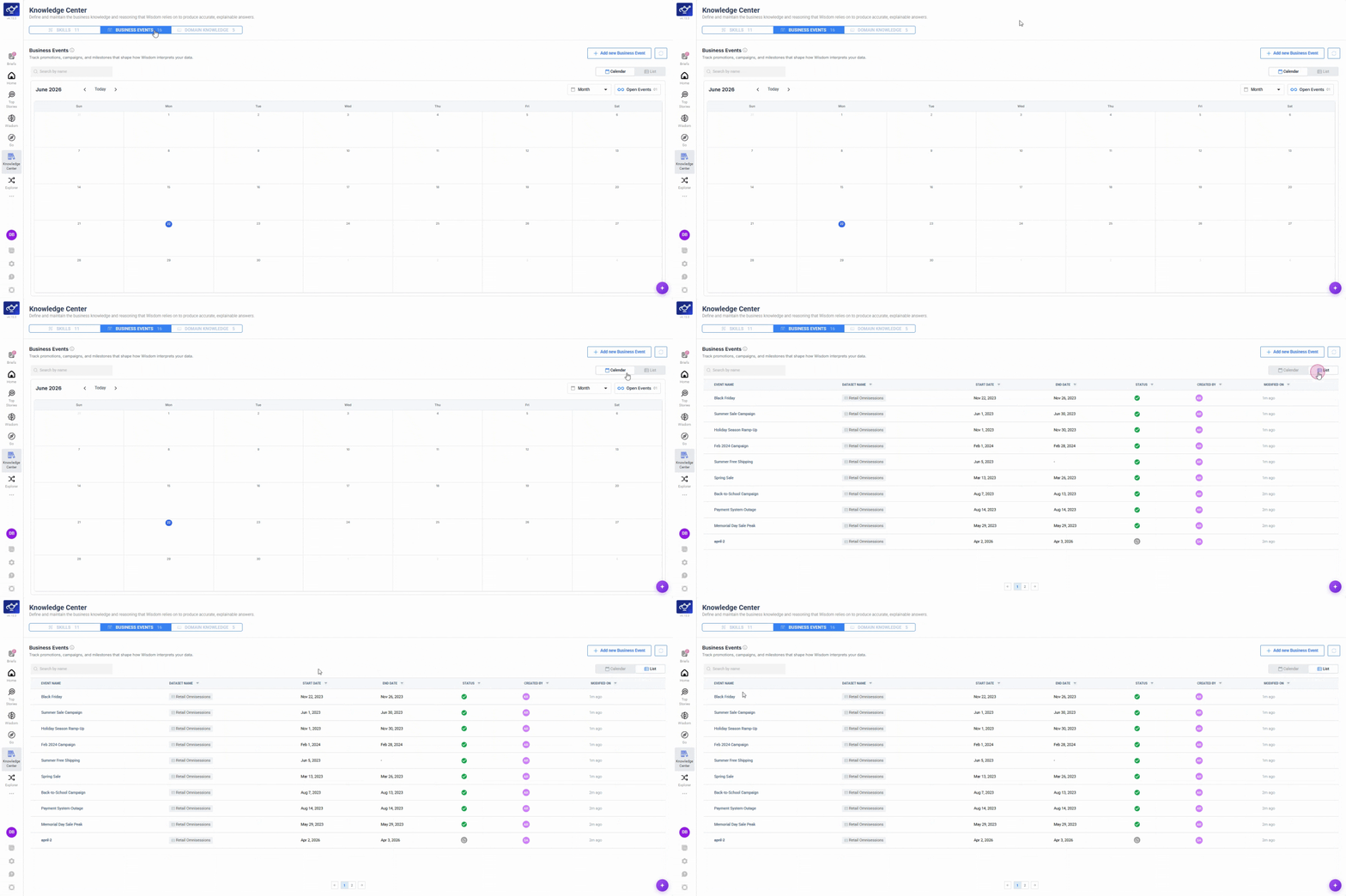
Switch to Calendar View
Toggle to Calendar View to see all events plotted on a timeline — useful for spotting overlaps or gaps.
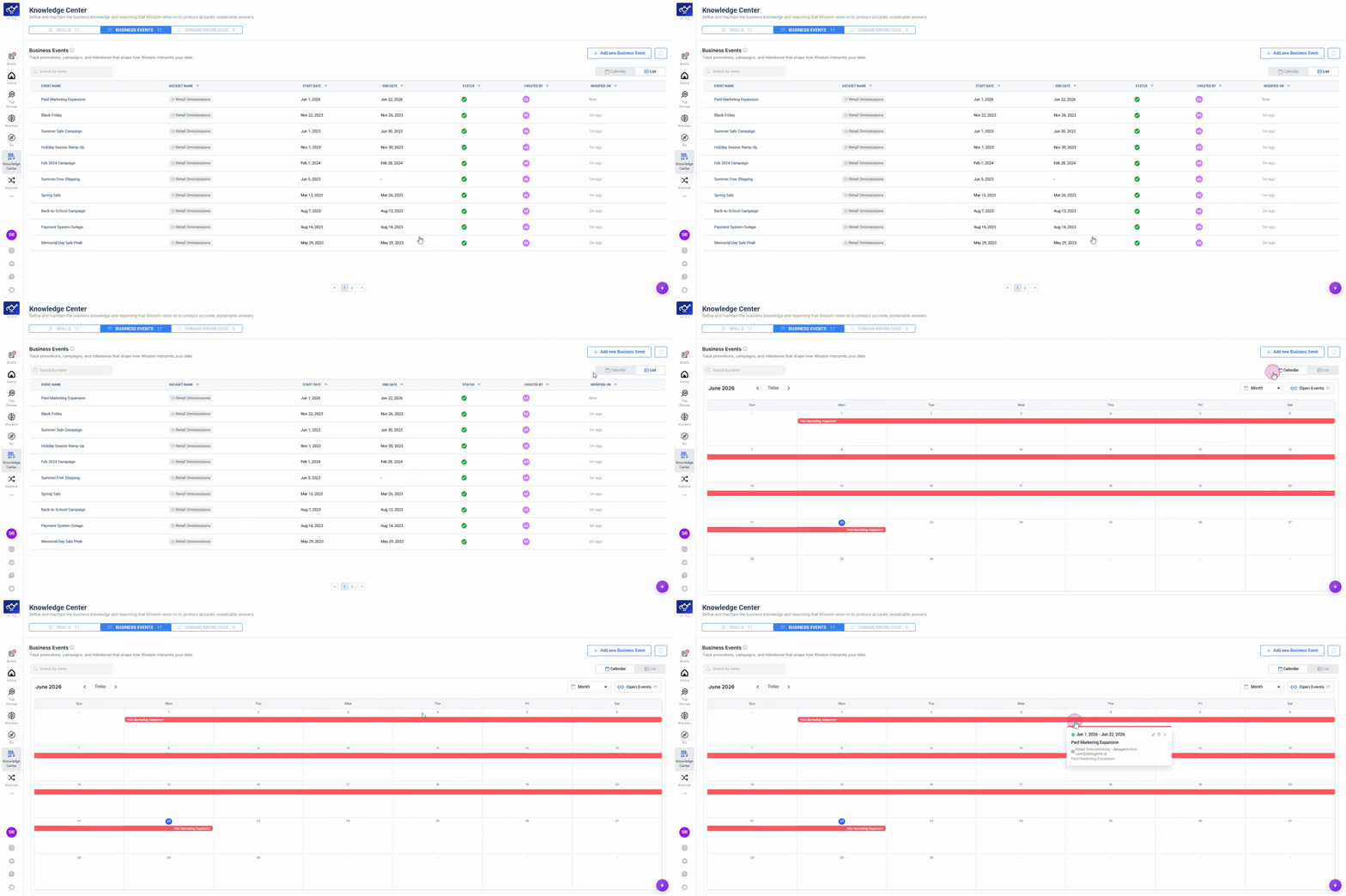
Add events retrospectively too — if you see a spike in Top Stories that you know was caused by a campaign last month, log it now. Wisdom will use it going forward when referencing that period.
Good events to log
Campaigns & Promotions
Flash sales, discount periods, email campaigns, paid media pushes — anything that intentionally drives a spike in acquisition or revenue.
Product Changes
Feature launches, UI changes, pricing updates, checkout flow changes — anything that may have altered conversion behavior.
Operational Events
Site outages, data pipeline delays, payment processor issues — events that caused drops in data quality or real performance.
Seasonal Markers
Public holidays, peak shopping periods (Black Friday, Diwali, Lunar New Year) — recurring calendar events that affect baseline expectations.